
आज के Digital और Professional युग में Computer का ज्ञान तभी पूर्ण माना जाता है, जब व्यक्ति को Microsoft Office का सही उपयोग आता हो। चाहे बात School या College की हो, Government Exam की तैयारी की हो, या फिर Office Job और Corporate Career की — हर जगह Microsoft Office एक Basic और Mandatory Skill बन चुका है।
Microsoft Office केवल Document typing या Presentation बनाने का साधन नहीं है, बल्कि यह एक Complete Office Productivity System है, जिसके माध्यम से Document Creation, Data Analysis, Business Presentation, Database Management, Email Communication और Digital Note-Taking जैसे सभी कार्यालय कार्य Professional तरीके से किए जाते हैं।
इसी कारण Microsoft Office को दुनिया भर में Industry Standard Office Software माना जाता है। लगभग सभी Government Offices, Private Companies, Banks, Educational Institutions और Corporate Organizations में Microsoft Office का उपयोग किया जाता है। यही वजह है कि CCC, ADCA, O-Level और अन्य Competitive Exams में Microsoft Office से जुड़े प्रश्न नियमित रूप से पूछे जाते हैं।
इस Book / Notes में Microsoft Office को Basic से Advance स्तर तक, Student के Point of View से, सरल भाषा में और Exam-Oriented तरीके से समझाया गया है, ताकि सीखने वाला न केवल परीक्षा में सफल हो, बल्कि Professional Life में भी इसका सही उपयोग कर सके।
Microsoft Office क्या है?
Microsoft Office एक Commercial और Industry-Standard Office Productivity Suite है, जिसे Microsoft Corporation द्वारा विशेष रूप से Professional, Business और Corporate Work Environment के लिए विकसित किया गया है।
यह Software केवल दस्तावेज़ बनाने का Tool नहीं है, बल्कि एक Complete Digital Office System है, जिसके माध्यम से किसी भी संस्था के दैनिक कार्यालय कार्यों को Plan, Create, Manage, Share और Secure किया जाता है।
Microsoft Office का उपयोग मुख्य रूप से निम्न कार्यों के लिए किया जाता है:
- Professional Documents तैयार करने के लिए
Example: Letterhead, Office Reports, Legal Documents, Contracts - Large-Scale Data Processing और Analysis के लिए
Example: Accounts, Payroll, Result Processing, Financial Statements - High-Impact Presentations बनाने के लिए
Example: Corporate Meetings, Business Proposals, Training Sessions - Structured Database Management के लिए
Example: Employee Records, Customer Information, Inventory Systems - Official Email और Office Communication के लिए
Example: Professional Mail, Meeting Schedule, Calendar, Tasks - Digital Note-Taking और Workflow Management के लिए
Example: Meeting Notes, Project Planning, Task Tracking
Microsoft Office को दुनिया भर में Office Automation और Corporate Productivity का मानक (Standard) माना जाता है, इसलिए यह Software लगभग हर Government Office, Private Company, School, College और Corporate Organization में उपयोग किया जाता है।
इसी कारण Microsoft Office सीखना केवल एक Software सीखना नहीं, बल्कि Professional Office Culture और Industry Practices को समझना माना जाता है।
Microsoft Office को “Industry Standard” क्यों कहा जाता है?
Microsoft Office को Industry Standard इसलिए कहा जाता है क्योंकि:
- यह विश्व की अधिकांश कंपनियों और सरकारी संस्थानों में उपयोग होता है
- इसके File Formats (DOCX, XLSX, PPTX) Globally Accepted हैं
- Corporate Hiring में Microsoft Office Skills अनिवार्य मानी जाती हैं
- यह Software Professional Workflow के अनुसार Design किया गया है
Tip: इसी कारण Microsoft Office सीखना केवल Syllabus नहीं, बल्कि Career Skill माना जाता है।
MS Office क्यों बनाया गया?
Microsoft Office के प्रमुख उद्देश्य निम्नलिखित हैं:
- Office Work को Digital और Paperless बनाना
- Professional Documents को Standard Format में तैयार करना
- Large Data को Accurate और Fast तरीके से Process करना
- Business Presentations को Effective बनाना
- Office Communication और Scheduling को Centralized करना
Microsoft Office किसने बनाया?
- Microsoft Office को Microsoft Corporation द्वारा विकसित किया गया
- Microsoft की स्थापना Bill Gates और Paul Allen ने की थी
- पहला Microsoft Office Package 1989 में प्रस्तुत किया गया
- समय के साथ यह Software Desktop से Cloud Platform तक विकसित हुआ
यह विकास इस बात को दर्शाता है कि Microsoft Office बदलती हुई Office जरूरतों के अनुसार स्वयं को लगातार Upgrade करता रहा है।
MS Office किन Platform पर कार्य करता है?
MS Office एक Multi-Platform Solution है:
- Windows
- macOS
- Mobile Devices (Android / iOS)
- iOS (iPhone / iPad)
- Web Browser (Microsoft 365 Online)
Microsoft Office के Versions (Detail Explanation + Exam Oriented)
Microsoft Office विभिन्न Versions में उपलब्ध रहा है, जिनका उद्देश्य अलग-अलग समय की तकनीकी आवश्यकताओं को पूरा करना था।
- प्रारंभिक Versions → Desktop Focused
- Middle Versions → User Interface & Productivity Focused
- Latest Versions → Cloud, Collaboration & AI Focused
Tip: Exams में पुराने Versions (2007, 2010) से अधिक प्रश्न पूछे जाते हैं क्योंकि वहीं से Major Conceptual Changes शुरू हुए।
इसके कई Versions उपलब्ध है, पर यहाँ मैं कुछ मुख्य और परीक्षा में पूछने वाले ही साझा कर रहा हूँ:
- MS Office 2007
- MS Office 2010
- MS Office 2013
- MS Office 2016
- MS Office 2019
- MS Office 2021
- Microsoft 365 (Subscription Based)
अब हम Microsoft Office के महत्वपूर्ण versions को detail में पढ़ते हैं:
MS Office 2007
- Release Year: 2007
- सबसे बड़ा बदलाव
- पहली बार Ribbon Interface आया
- Menu Bar (File, Edit…) हटकर Tabs आए
- मुख्य Applications
- MS Word 2007
- MS Excel 2007
- MS PowerPoint 2007
- MS Access 2007
- नई File Extensions (बहुत Important)
- Word → .docx
- Excel → .xlsx
- PowerPoint → .pptx
Exam Question:
Q. .docx File किस Version से शुरू हुई?
A: MS Office 2007
MS Office 2010
- Release Year: 2010
- नए Features
- Backstage View (File Tab)
- Improved Ribbon
- Better Graphics & Animation
- Paste Preview Feature
- विशेष बातें
- PDF Save Option Improve
- Excel में Conditional Formatting बेहतर
Exam Point: File Tab को Backstage View कहा जाता है (2010 से)
MS Office 2013
- Release Year: 2013
- मुख्य बदलाव
- Touch Screen Support
- Cloud Integration (OneDrive)
- Reading Mode (Word)
- Interface
- Flat & Modern Look
- Start Screen (Templates)
Exam Question:
Q. MS Office में Cloud Support किस Version से आया?
A: MS Office 2013
MS Office 2016
- Release Year: 2015–16
- Advanced Features
- Real-Time Collaboration
- Share Option Improve
- Smart Lookup
- New Chart Types (Excel)
- खास बात
- Multiple Users एक साथ File Edit कर सकते हैं
Exam Tip: Collaboration Feature → Office 2016+
MS Office 2019
- Release Year: 2018–19
- मुख्य Features
- Improved Ink Tools
- New Formulas (Excel)
- Better PowerPoint Animation
- Offline Focused Version
- License Type
- One-Time Purchase (Lifetime License)
Exam Question:
Q. कौन-सा Version Subscription पर नहीं चलता?
A: MS Office 2019
MS Office 2021
- Release Year: 2021
- New Features
- Dynamic Arrays (Excel)
- XLOOKUP Function
- Visual Refresh
- Performance Improvement
- Important Point: Windows 11 Compatible
Microsoft 365 (सबसे Important)
- Release Year: 2011 (Office 365), फिर इसको July, 2017 में Microsoft 365 के तौर पर Rebrand कर दिया
- पहले नाम – Office 365
- License Model
- Subscription Based (Monthly / Yearly)
- Key Features
- Always Latest Version
- Cloud Storage (OneDrive)
- Use on Multiple Devices
- AI Based Features
- Internet Role: Activation और Sync के लिए Internet जरूरी
Exam Question:
Q. Subscription Based MS Office कौन-सा है?
A: Microsoft 365
Microsoft Office Versions – Quick Comparison Table
| Version | Release | Key Feature | Exam Importance |
| 2007 | 2007 | Ribbon + .docx | ⭐⭐⭐⭐⭐ |
| 2010 | 2010 | Backstage View | ⭐⭐⭐⭐ |
| 2013 | 2013 | Cloud Support | ⭐⭐⭐⭐ |
| 2016 | 2016 | Collaboration | ⭐⭐⭐ |
| 2019 | 2019 | Lifetime License | ⭐⭐⭐ |
| 2021 | 2021 | XLOOKUP | ⭐⭐⭐ |
| 365 | Ongoing | Subscription | ⭐⭐⭐⭐⭐ |
Exam Memory Tricks (CCC / ADCA / O-Level)
- Ribbon Interface → 2007
- File Tab / Backstage → 2010
- Cloud / OneDrive → 2013
- Collaboration → 2016
- Lifetime License → 2019 / 2021
- Subscription → Microsoft 365
नोट: अगर Exam की तैयारी कर रहे हो तो:
- 2007 और 2010 सबसे ज्यादा Important हैं
- File Extension, Ribbon, Backstage View जरूर याद रखें
- Microsoft 365 से Conceptual Questions आते हैं
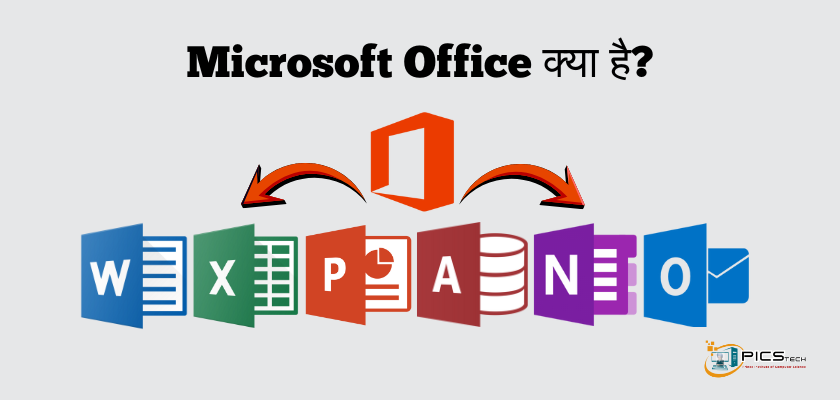
Microsoft Office के मुख्य Components (Applications)
1. Microsoft Word
उपयोग:
- Letter, Application
- Resume, CV
- Notes, Books
- Question Papers
मुख्य Features:
- Text Formatting
- Styles & Templates
- Table, Image, Chart
- Spell Check
- PDF Export
2. Microsoft Excel
उपयोग:
- Calculation
- Result Sheet
- Salary Sheet
- Data Analysis
मुख्य Features:
- Formulas & Functions
- Charts & Graphs
- Pivot Table
- Data Validation
3. Microsoft PowerPoint
उपयोग:
- Seminar
- Classroom Teaching
- Business Presentation
मुख्य Features:
- Slides
- Animation
- Transition
- Slide Show
4. Microsoft Access (Database Management System)
उपयोग:
- Student Record
- Employee Database
- Inventory Management
5. Microsoft Outlook (Email Management Software)
उपयोग:
- Email Sending / Receiving
- Calendar
- Meeting Schedule
- Contact Management
6. OneNote (Digital Notes Software)
उपयोग:
- Class Notes
- Meeting Notes
- To-Do List
👉 प्रत्येक Application एक अलग Professional आवश्यकता को पूरा करता है।
MS Office के File Formats
| Application | Default File Extension |
| MS Word | .docx |
| MS Excel | .xlsx |
| MS PowerPoint | .pptx |
| MS Access | .accdb |
Microsoft Office Free है या Paid?
MS Office मुख्य रूप से Paid Software है।
Available Versions:
- Microsoft 365 (Subscription Based)
- Office 2021 / 2019 (Lifetime License – Limited Updates)
- Free Trial Version (Limited Time)
Tip: Students के लिए कई बार Discount या Educational License उपलब्ध होती है।
Students और Job Aspirants के लिए महत्व
MS Office Students के लिए इसलिए महत्वपूर्ण है क्योंकि:
- यह Office Jobs की Basic Requirement है
- Competitive Exams में इसके Concepts पूछे जाते हैं
- Data Handling और Presentation Skills विकसित करता है
- Professional Work Culture की समझ देता है
Microsoft Office और LibreOffice में अंतर
| LibreOffice | Microsoft Office |
| Educational + Community Focus | Corporate + Professional Focus |
| Free & Open Source | Commercial & Industry Standard |
| Personal / Academic Use | Business / Enterprise Use |
| Offline Oriented | Cloud + Collaboration Oriented |
Microsoft Office Online क्या है?
MS Office का एक Web Version होता है जिसे Office Online कहा जाता है।
Features:
- Browser से Use
- Internet Required
- Limited Features
- Free Version Available
MS Office कितना Secure है?
- Microsoft द्वारा Regular Updates
- Virus Protection (With Windows Defender)
- Cloud Backup (OneDrive)
- Password Protected Files
Microsoft Office का उपयोग Exams में
MS Office निम्न Exams में पूछा जाता है:
- CCC
- O-Level
- ADCA / DCA
- Computer Teacher Exams
- Banking & SSC (Basic Level)
Microsoft Office Installation का Concept
MS Office की Installation केवल Software डालना नहीं होती, बल्कि यह License, Account और Device Authorization से जुड़ी एक प्रक्रिया होती है।
क्योंकि यह एक Commercial Software है, इसलिए इसकी Installation में Microsoft Account और License Verification आवश्यक होता है।
यही बिंदु इसे Free Software (जैसे LibreOffice) से अलग बनाता है।
Microsoft Office प्राप्त करने के तरीके
Microsoft Office को निम्न तरीकों से प्राप्त किया जा सकता है:
- Microsoft 365 Subscription
- Monthly / Yearly Plan
- Always Updated Version
- One-Time Purchase Version
- Office 2019 / Office 2021
- Lifetime License (Limited Updates)
- Educational License (Students / Institutes)
- Special Discount या Free Access (कुछ Cases में)
MS Office Download कैसे करें?
Microsoft Office को हमेशा Official और Trusted Source से ही Download करना चाहिए।
Download के तरीके:
- Microsoft की Official Website से
- Microsoft 365 Account Login करके
- Trial Version (Limited Time)
- Educational License (Students के लिए)
Exam Point: Microsoft Office Paid Software है, इसलिए Account / License की आवश्यकता होती है।
Microsoft Office Installation कैसे करें?
Microsoft Office की Installation Version पर निर्भर करती है।
Installation Steps (General):
- Setup File पर Double Click करें
- Microsoft Account से Sign In करें
- License Verify होने दें
- Install Button पर Click करें
- Installation Complete होने दें
Installation के बाद Desktop और Start Menu में Icons बन जाते हैं।
Microsoft Office को Open करने के तरीके
Microsoft Office को कई तरीकों से Open किया जा सकता है:
- Desktop Icon पर Double Click
- Start Menu → Microsoft Word / Excel / PowerPoint
- Search Box में Application का नाम लिखकर
- Run Command से
- MS Word → winword
- MS Excel → excel
- MS PowerPoint → powerpnt
Exam Trick: CCC / ADCA Exams में Run Command से प्रश्न पूछे जाते हैं।
Microsoft Office का Working Environment
MS Office का Working Environment सभी Applications में लगभग समान होता है, जिससे User को बार-बार नया Interface सीखने की आवश्यकता नहीं पड़ती।
यह Concept User Productivity और Time Saving के लिए अपनाया गया है।
Microsoft Office Interface के मुख्य भाग
- Title Bar
- File का नाम
- Application का नाम
- Window Control Buttons
- Quick Access Toolbar (QAT)
- Frequently Used Commands
- Save, Undo, Redo
- User अपनी पसंद से Commands जोड़ सकता है
Tip: Customization Feature Professional Users के लिए बहुत महत्वपूर्ण है।
- Ribbon Interface (सबसे महत्वपूर्ण)
Ribbon Microsoft Office का Command Control Center है। यह Microsoft Office का सबसे महत्वपूर्ण Feature है।
Ribbon के तीन भाग:
- Tabs – Home, Insert, Review आदि
- Groups – Font, Paragraph, Styles
- Commands – Actual Tools
Tip: Ribbon पहली बार MS Office 2007 में आया। इससे Commands आसानी से मिल जाती हैं।
- Work Area – जहाँ वास्तविक कार्य होता है
- Status Bar – Page, Zoom, Word Count
File Tab और Backstage View
File Tab पर Click करने से Backstage View खुलता है।
Backstage View का उद्देश्य:
- File Management
- Printing
- Sharing
- Exporting
- Account Information
File Tab के Options:
- New
- Open
- Save
- Save As
- Share
- Export
- Close
Tip: Exam में पूछा जाता है:
- Print Option कहाँ होता है? → File Tab
- File Tab को Backstage View कहा जाता है (2010 से)
Microsoft Office Tabs का परिचय
Common Tabs लगभग सभी Applications में होते हैं:
| Tab | Professional Purpose |
| Home | Basic Editing & Formatting |
| Insert | Objects & Media जोड़ना |
| Design / Layout | Page Structure |
| Review | Proofreading & Security |
| View | Display & Navigation |
New File और Templates का Concept
Microsoft Office में New File दो तरीकों से बनाई जाती है:
- Blank Document
- Pre-Designed Templates
Tip: Templates का उपयोग Corporate Standardization के लिए किया जाता है।
Shortcut Key: Ctrl + N
File Save, Save As और Version Control
File Save करना बहुत जरूरी होता है।
Save Options:
- File → Save
- Quick Access Toolbar → Save Icon
- Shortcut → Ctrl + S
Tip: पहली बार Save करते समय File Name और Location चुनना आवश्यक होता है।
नोट: Current File Update करता है।
Save As का उपयोग
Save As का उपयोग तब किया जाता है जब:
- File का नाम बदलना हो
- File का Location बदलना हो
- File को दूसरे Format में Save करना हो
Tip: Professional Environment में Version Control बहुत महत्वपूर्ण होता है।
File Open, Close और Exit में अंतर
- Open → Existing File खोलता है। File खोलने के तरीके:
- File → Open
- Shortcut → Ctrl + O
- Close → Current File बंद करता है।
- Exit → पूरा Application बंद करता है।
Tip: Exam में Close और Exit का अंतर पूछा जाता है।
Print Management System
Microsoft Office में Printing एक Centralized Control System से होती है।
Print Command का उपयोग
Document Print करने के लिए:
- File → Print
- Shortcut → Ctrl + P
Print Settings:
- Printer Selection
- Pages (All / Current)
- Copies
Microsoft Office Help System
Microsoft Office में Built-in Help System होता है।
- Help Tab
- Search Based Help
- Shortcut → F1
Tip: Beginners और Students के लिए अत्यंत उपयोगी।
Keyboard Shortcut Keys का महत्व
Shortcut Keys का उपयोग करने से:
- Time Save होता है
- Work Speed बढ़ाता है
- Accuracy Improve करता है
- Professional Skill बढ़ती है
- Office Productivity बढ़ाता है
- Exams में Time Save करता है
Microsoft Office: Exam-Oriented Key Points
- Microsoft Office एक Office Productivity Suite है
- इसे Microsoft Corporation ने विकसित किया है
- यह Industry Standard Software माना जाता है
- MS Word, Excel और PowerPoint इसके Core Tools हैं
- Microsoft Office Paid Software है
- Ribbon Interface Command Area है
- Run Command से Software Open किया जा सकता है
- File Tab = Backstage View
- Ctrl + N → New
- Ctrl + S → Save
- Ctrl + P → Print
Applications of MS Office
Microsoft Office का उपयोग निम्न क्षेत्रों में किया जाता है:
- Corporate Offices
- Government Departments
- Educational Institutions
- Banking & Finance Sector
- IT & Service Industry
Microsoft Office FAQs
प्रश्न 1. Microsoft Office क्या है?
उत्तर: Microsoft Office एक Professional Office Software Suite है, जिसे Microsoft Corporation द्वारा विकसित किया गया है। इसका उपयोग Document, Spreadsheet, Presentation, Database और Office Communication से जुड़े कार्यों के लिए किया जाता है।
प्रश्न 2. Microsoft Office को Industry Standard Software क्यों कहा जाता है?
उत्तर: Microsoft Office को Industry Standard इसलिए कहा जाता है क्योंकि यह दुनिया भर के Government Offices, Private Companies और Corporate Organizations में सबसे अधिक उपयोग किया जाने वाला Office Software है।
प्रश्न 3. Microsoft Office के मुख्य Components कौन-कौन से हैं?
उत्तर: Microsoft Office के मुख्य Components हैं – Microsoft Word, Microsoft Excel, Microsoft PowerPoint, Microsoft Access, Microsoft Outlook और OneNote।
प्रश्न 4. Microsoft Word का उपयोग किस लिए किया जाता है?
उत्तर: Microsoft Word का उपयोग Letter, Application, Resume, Report, Notes और Books जैसे Professional Documents तैयार करने के लिए किया जाता है।
प्रश्न 5. Microsoft Excel क्यों महत्वपूर्ण माना जाता है?
उत्तर: Microsoft Excel का उपयोग Calculation, Data Analysis, Salary Sheet, Result Preparation और Financial Reports बनाने के लिए किया जाता है, इसलिए यह Office Jobs में बहुत महत्वपूर्ण है।
प्रश्न 6. Microsoft PowerPoint का उपयोग कहाँ किया जाता है?
उत्तर: Microsoft PowerPoint का उपयोग Presentation, Seminar, Meeting, Training Session और Classroom Teaching के लिए किया जाता है।
प्रश्न 7. Microsoft Office Free है या Paid?
उत्तर: Microsoft Office एक Paid Software है, लेकिन इसमें Trial Version और Students के लिए Educational Plans उपलब्ध होते हैं।
प्रश्न 8. Microsoft Office और LibreOffice में क्या अंतर है?
उत्तर: Microsoft Office Paid और Industry Standard Software है, जबकि LibreOffice Free और Open Source Software है।
प्रश्न 9. क्या Microsoft Office CCC / ADCA / O-Level परीक्षा में आता है?
उत्तर: हाँ, CCC, ADCA और O-Level जैसी परीक्षाओं में Microsoft Office से जुड़े Concepts, Uses और Shortcut Keys पर प्रश्न पूछे जाते हैं।
प्रश्न 10. Microsoft Office सीखने में कितना समय लगता है?
उत्तर: Microsoft Office का Basic Knowledge 15–20 दिनों में और Advanced Level का ज्ञान 2–3 महीनों में सीखा जा सकता है।
प्रश्न 11. क्या Microsoft Office बिना Internet के चलता है?
उत्तर: हाँ, Microsoft Office का Desktop Version बिना Internet के चलता है। Internet केवल Activation और Updates के लिए आवश्यक होता है।
प्रश्न 12. Microsoft Office किन Operating Systems पर चलता है?
उत्तर: Microsoft Office Windows, macOS, Android, iOS और Web Browser पर चलता है।
प्रश्न 13. Microsoft Office में सबसे ज्यादा उपयोग होने वाले Tools कौन-से हैं?
उत्तर: Microsoft Word, Excel और PowerPoint सबसे ज्यादा उपयोग होने वाले Tools हैं।
प्रश्न 14. क्या Microsoft Office सीखने से नौकरी मिलने में मदद मिलती है?
उत्तर: हाँ, Microsoft Office सीखने से Office Jobs, Data Entry, Computer Operator और Corporate Sector में नौकरी पाने में मदद मिलती है।
प्रश्न 15. Microsoft Office की Shortcut Keys क्यों महत्वपूर्ण हैं?
उत्तर: Shortcut Keys से काम तेज होता है, समय बचता है और Exam में जल्दी Answer करने में सहायता मिलती है।
प्रश्न 16. Microsoft Office का उपयोग किन क्षेत्रों में होता है?
उत्तर: Microsoft Office का उपयोग शिक्षा, बैंकिंग, सरकारी विभाग, प्राइवेट कंपनियों और कॉर्पोरेट सेक्टर में होता है।
प्रश्न 17. क्या Microsoft Office Beginners के लिए कठिन है?
उत्तर: नहीं, Microsoft Office User-Friendly Software है और Beginners आसानी से इसे सीख सकते हैं।
प्रश्न 18. Microsoft Office के File Formats कौन-कौन से हैं?
उत्तर: Word – .docx, Excel – .xlsx, PowerPoint – .pptx और Access – .accdb।
प्रश्न 19. क्या Microsoft Office मोबाइल पर उपयोग किया जा सकता है?
उत्तर: हाँ, Microsoft Office के Mobile Apps Android और iOS दोनों पर उपलब्ध हैं।
प्रश्न 20. Microsoft Office सीखना क्यों जरूरी है?
उत्तर: Microsoft Office सीखना जरूरी है क्योंकि यह Professional Skills बढ़ाता है, Exam में काम आता है और Career Opportunities को बेहतर बनाता है।
निष्कर्ष (Conclusion)
Microsoft Office आज केवल एक Software नहीं, बल्कि Professional Computer Literacy का आधार बन चुका है। जो Student या Learner Microsoft Office को अच्छे से समझ लेता है, उसके लिए Office Jobs, Data Entry Work, Teaching, Banking, Government Services और Corporate Sector में अवसर अपने-आप खुलने लगते हैं।
Microsoft Word, Excel और PowerPoint जैसे Tools न केवल Exam के लिए महत्वपूर्ण हैं, बल्कि Real-Life Office Work में भी इनका प्रतिदिन उपयोग होता है। इसलिए Microsoft Office सीखना केवल Syllabus पूरा करना नहीं, बल्कि Career-Oriented Skill Development है।
यदि कोई Student Microsoft Office को Concept + Practical + Shortcut Keys के साथ सीखता है, तो वह किसी भी Office Environment में आत्मविश्वास के साथ कार्य कर सकता है। इसी उद्देश्य से यह Complete Notes तैयार की गई हैं, ताकि पाठक को Microsoft Office से जुड़ी कोई भी महत्वपूर्ण जानकारी अधूरी न रहे।